
C

Cuktech Ultra Tray Free Download for Windows 10/11

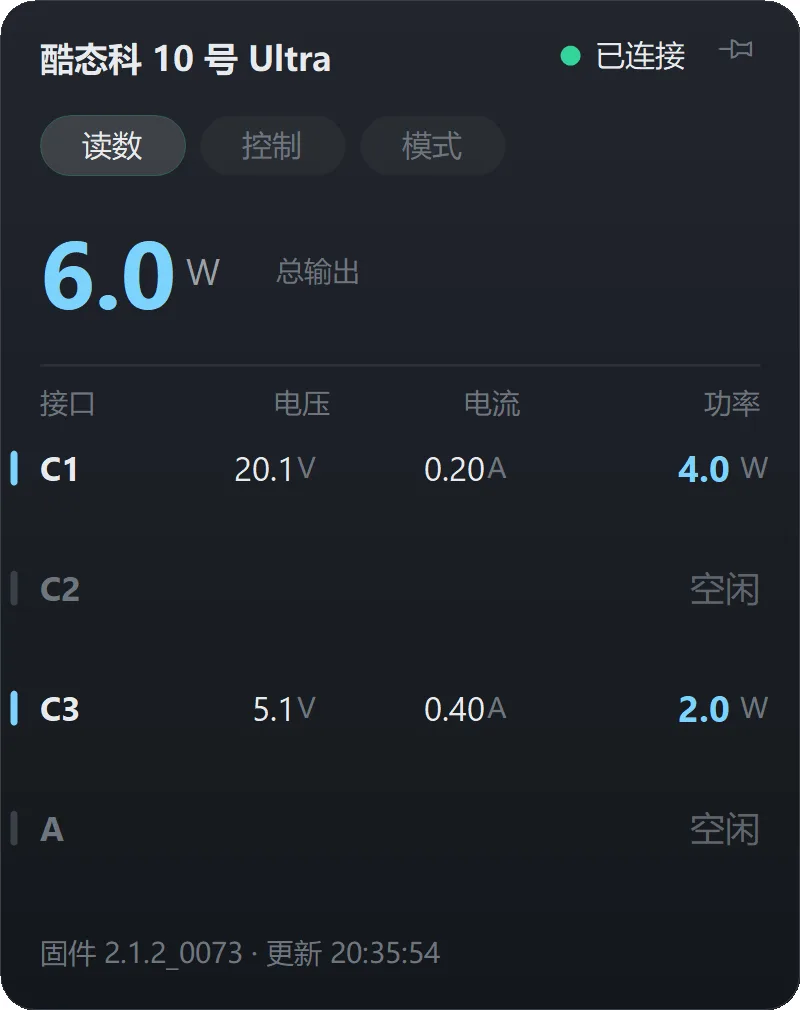
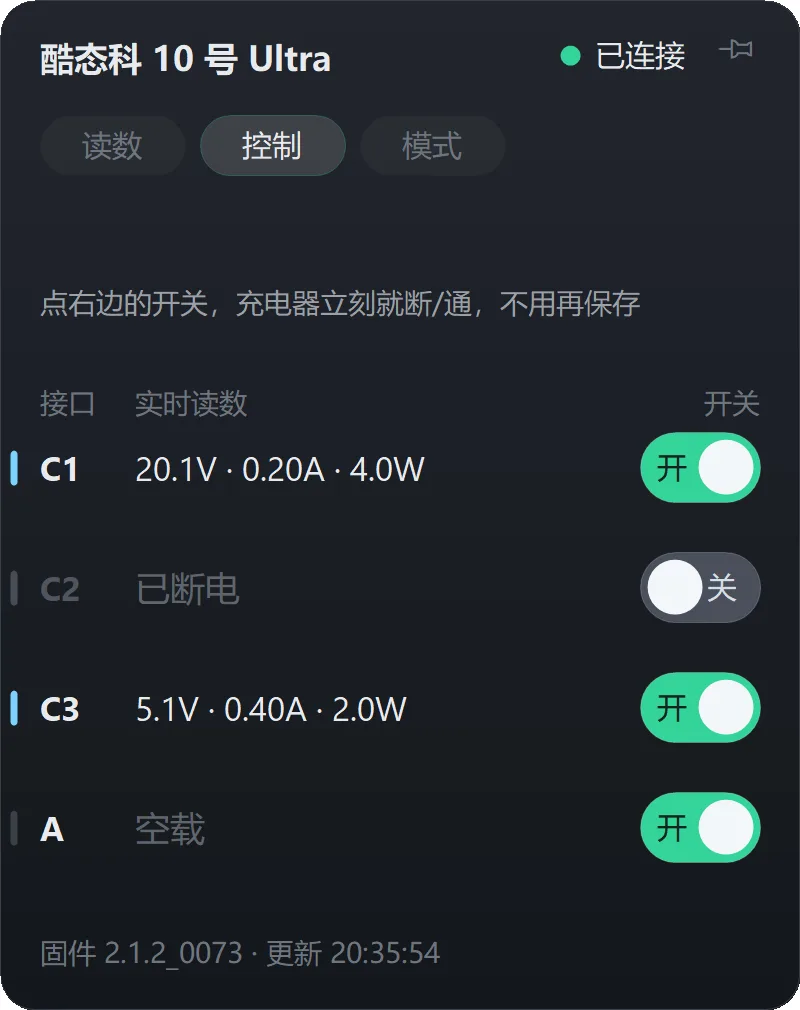
A small tray program that connects via Bluetooth to a Cuktech Ultra charger and shows the total power of its four ports directly on the taskbar, with detailed voltage, current and power readings and the ability to turn ports on or off.

System Utilities FreeOpen source Version 0.5.2
Works on:Win 11Win 10

Version 0.5.2 · Installer · official file from github.com

About Cuktech Ultra Tray

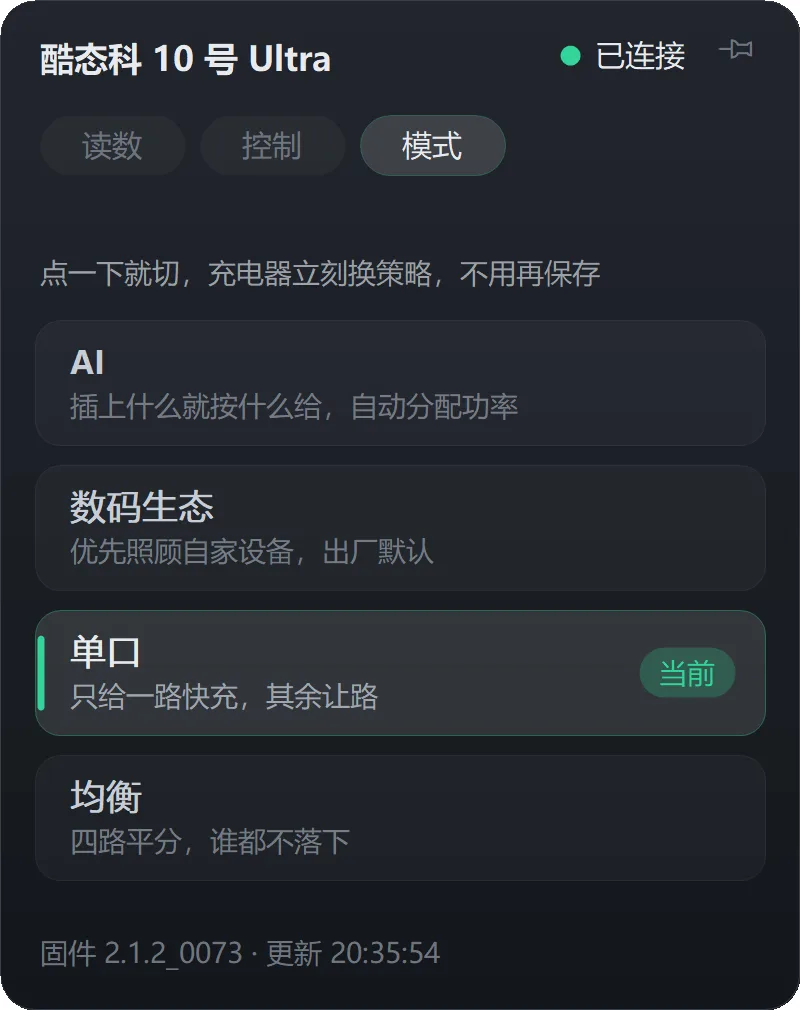
Cuktech Ultra Tray runs in the background with a single tray icon. It communicates directly with the Cuktech Ultra charger over Bluetooth, so no extra apps or gateways are required. The taskbar displays a small numeric readout of the combined output power, and clicking the tray icon opens a panel with per‑port measurements and switches to cut power.

The program is a native AOT executable, about 10 MB, and does not require any runtime to be installed. After copying the EXE to a computer it works immediately. It implements the Xiaomi MIoT Bluetooth encryption itself, allowing a direct BLE connection to the charger. The tray icon shows only the total power; the color changes with the power level. The detailed panel updates every second and lets you toggle each of the four ports. An update check is built‑in: right‑click the tray icon and choose “Check for updates” to download and replace the running version automatically. The application stays resident in memory, uses only a few megabytes, and does not display pop‑up windows unless you interact with it.

Key features

  • Shows total charger power as a numeric readout on the taskbar
  • Displays voltage, current and power for each of the four ports in a single panel
  • Allows turning each port on or off directly from the panel
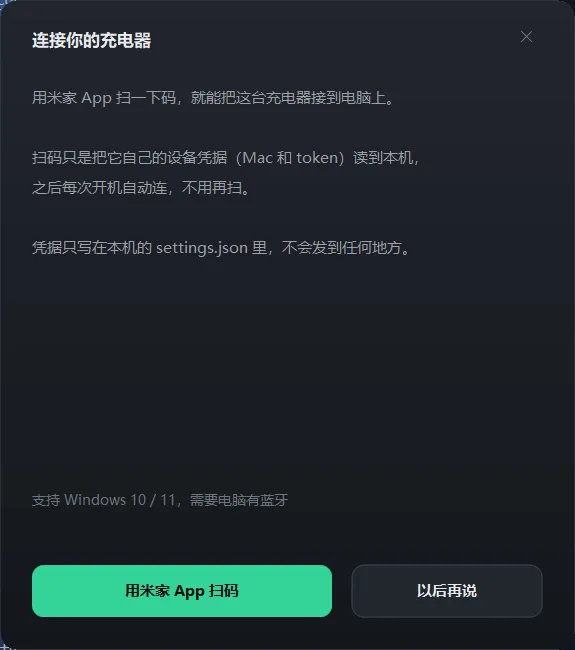
  • Connects to the charger via Bluetooth without needing the Mi Home app
  • Updates itself from the tray menu without reinstalling the whole program
  • Remembers panel position and keeps it on‑screen after restarts
  • Runs as a single portable EXE, no additional runtime required

Cuktech Ultra Tray screenshots

Cuktech Ultra Tray screenshot 1
Cuktech Ultra Tray screenshot 2
Cuktech Ultra Tray screenshot 3
Cuktech Ultra Tray screenshot 4

Screenshots from the official Cuktech Ultra Tray project. Click an image to enlarge it.

Download Cuktech Ultra Tray for Windows

All files come directly from the official Cuktech Ultra Tray project on github.com. Codehimblog does not host or change them. Most PCs need the 64-bit installer.

FileSize
Program file (EXE)CuktechTray-0.5.2-win.exe10.6 MB

Previous versions

Only needed if the latest version does not work for you. Older versions may miss security fixes.

VersionReleasedWindows download
0.5.125 November 2026Download (10.6 MB)
0.5.025 November 2026Download (10.6 MB)
0.4.725 November 2026Download (10.4 MB)
0.4.624 November 2026Download (10.4 MB)
0.4.523 November 2026Download (10.4 MB)
0.3.322 November 2026Download (126.7 MB)
0.3.120 November 2026Download (126.7 MB)
0.3.019 November 2026Download (126.6 MB)

How to install Cuktech Ultra Tray

  1. Click the "Download Cuktech Ultra Tray" button on this page. Your browser saves CuktechTray-0.5.2-win.exe (10.6 MB), usually to your Downloads folder.
  2. Double-click the downloaded file to start Cuktech Ultra Tray. It runs without installation; if Windows shows a security prompt, check that the file came from this page before you continue.
  3. Optional: move the file to a folder of its own (for example Documents\Cuktech Ultra Tray) so it is easy to find next time.
  4. After the program starts, right‑click the tray icon and choose “Install to this PC” to set up automatic updates
  5. Use the tray menu’s “Check for updates” to keep the program current

Windows compatibility

WindowsStatus
Windows 11Supported
Windows 10Supported
Windows 8.1Not supported
Windows 8Not supported
Windows 7Not supported

Frequently asked questions

Is Cuktech Ultra Tray free?

Yes, it is open‑source and free to use.

Is it safe to install?

The program is a small native executable that does not require additional components and runs only when you start it.

Does it need an internet connection?

It only needs Bluetooth to talk to the charger; internet is only used for checking updates.

How do I remove it?

Delete the EXE file; the program does not create additional files.

Will it work with other chargers?

It is designed for the Cuktech Ultra charger and may not work with other devices.

License

Free and open source (MIT). You can use it for free at home and at work.

More System Utilities software and similar free programs for Windows.

All System Utilities software